Are you unable to copy or select text on certain web pages? This is because some websites use technical measures to prevent users from copying text.
Website owners implement these restrictions despite knowing they may negatively affect user experience. Some popular sites use duplicate content but still rank well.
There are multiple ways to keep your content safe and prevent right-clicking. CMSs offer numerous plugins for this purpose, and hosting platforms and CDNs provide features such as server-side exclusions and link protection.
Keep in mind: If you copy content from a restricted site without permission, you are likely violating copyright. Remember to respect digital property rights and adhere to the creator’s terms. You need permission to use text or content. And use content only with permission, and read the terms.
Using content protection strategies can negatively impact the user experience. Let’s explore how to copy text from protected (right-click-disabled) websites.
1. Extracting Text From Images
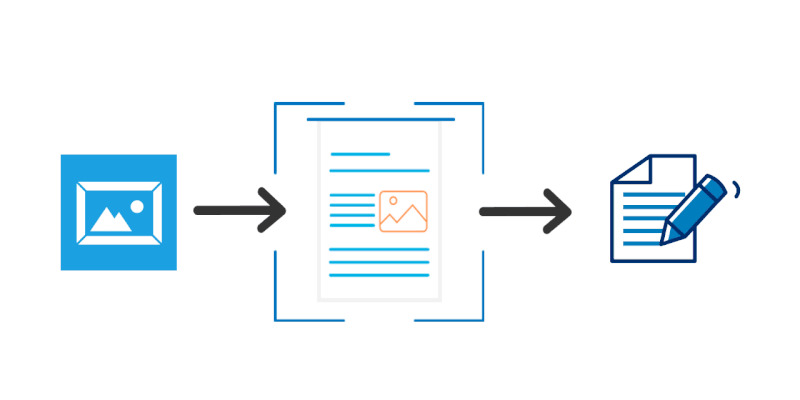
With optical text recognition, you can easily convert images into text. To be clear, this strategy is my top pick because it’s beginner-friendly. Simply take a screenshot of the text you want to copy from a protected website, then convert it to plain text, PDF, DOC, or another format using online optical character recognition (OCR) tools.
Here’s an example. I took a screenshot of the text from a content protected website. And, Onlineocr offers an easy-to-use OCR with just a few steps.
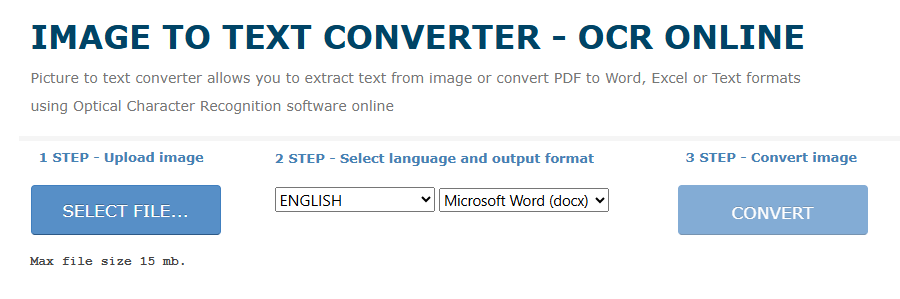
So, I’m going to upload my screenshot to it. There are options and languages, but you should pick the correct language.
Output formats include docs, Excel files, and plain text. I chose plain text, and it finished in 10 seconds, exactly what I wanted. As shown in the screenshot.
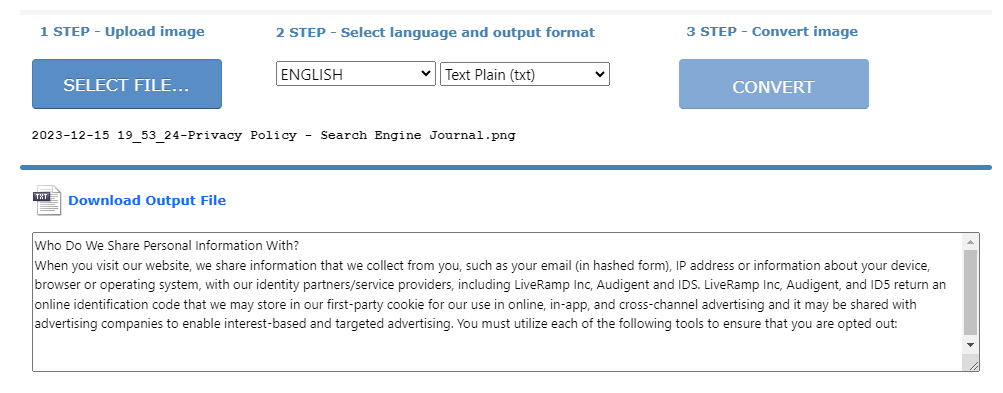
There are only four steps: upload, set the language, convert, and download. That’s why I said this is a beginner-friendly approach. It is pretty fast. Or, search Google or other engines for “OCR tools.” You will find plenty of websites.
They convert images to text with optical character recognition. Or… You can do this type of stuff with Google Cloud AI Optical Character Recognition.
With most browsers, you can access the online OCR to copy text from restricted websites easily. You can extract characters from PDFs/images without installing apps. It’s beginner-friendly, which is why I put it first. Let’s explore other methods.
2. Using Chrome Extensions
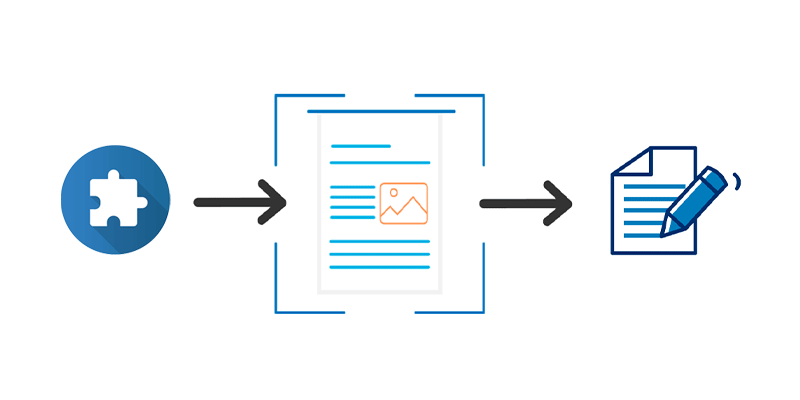
Everyone uses a web browser, and Chrome is the most popular (over 2 billion users). You can copy text from web pages using Chrome in multiple ways.
Is it possible to use a Chrome extension to copy text from protected websites?
The simple answer is YES. It’s not difficult. Some Chrome extensions allow you to copy text from protected websites. I’ve tested a few, and most of them work.
I’ll show you some basic ones. Allow Copy Select & Enable Right Click is a popular Chrome extension with over 100K users.
It lets you enable context menus on restricted websites and copy options on all pages, even when a website doesn’t allow right-clicking.
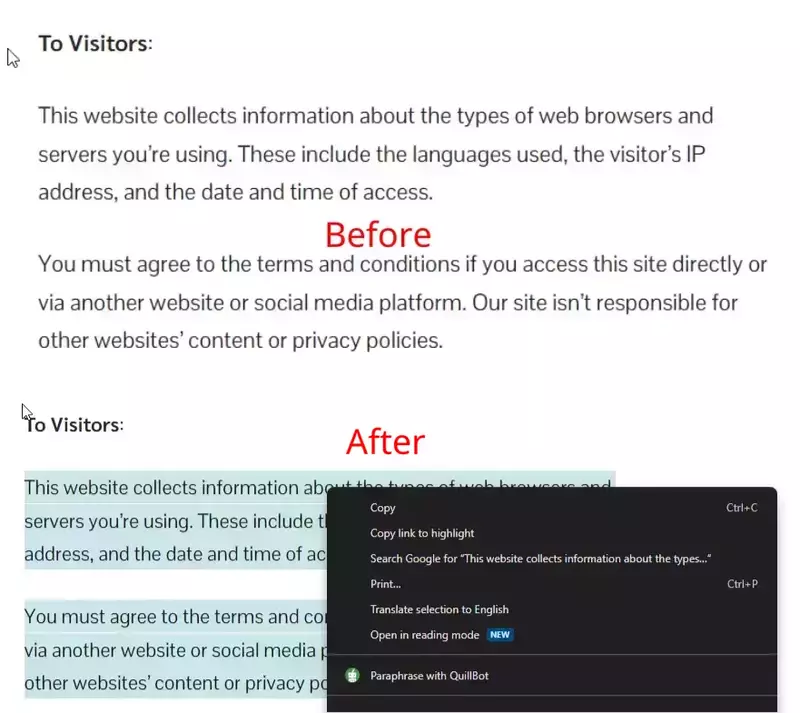
I’m going to test this add-on on a website that doesn’t allow right-clicks. I can’t use shortcuts or drag images with this page, so I’ve installed the “Allow Copy” extension and enabled the option “Enable Copy.” It works; you can see it here:
If you don’t like the first one, consider Enable Right-Click, another fine extension that works independently in each tab. It has received many positive reviews. The Google Chrome store offers many extensions that enable users to copy text from protected websites and save images from content-protected sites. We’ll discuss some steps…
3. With Reading Mode In Browsers
Before doing these things, clear the browser cache. In most browsers, you can use read mode, a handy feature that allows you to copy text from secure web pages.
I’ll show you how to use read mode in different browsers.
Google Chrome

Chrome’s latest version comes with reading mode by default. You can use it by right-clicking and selecting “open in reading mode.”
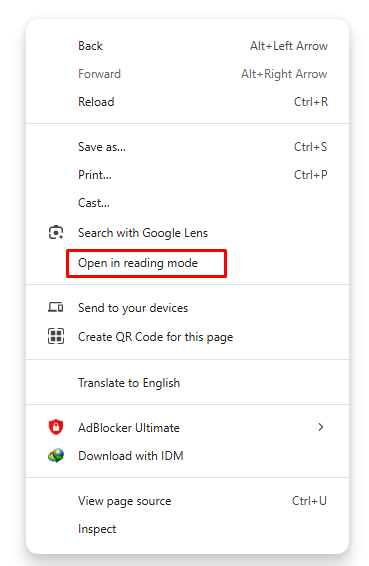
Chrome’s reading mode allows customization of fonts, colors, and other settings, though this method may not always be reliable. It isn’t perfect. Sometimes things can go wrong, especially if a site disables right-click. If a website blocks copy but still lets you right-click, try Chrome’s reading mode to copy the text.
Mozilla Firefox

I have used Firefox to copy text from several protected websites, but I do not feel comfortable using it as my primary browser. But Firefox’s default reading mode makes it easy to navigate even content-protected pages.
So, you can open Firefox reading mode by pressing the “F9” shortcut key on the keyboard or from the address bar icon. Here’s a screenshot:
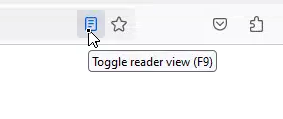
You can usually use read mode in Firefox without an extension to copy text from content-blocked websites. Occasionally, it doesn’t work because in WordPress and other CMSs, some security and cache plugins implement text protection strategies.
Microsoft Edge

MS Edge is a popular browser that has made significant progress over the past few years. Like Mozilla Firefox, it has a practical reading mode and allows you to copy text from any restricted website.
Press the “F9” shortcut on the keyboard to open Microsoft Edge reading mode. You can access it by clicking on the icon in the address bar that indicates it.
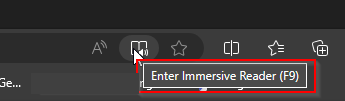
A handy feature that doesn’t require extensions. Here’s an image showing how I open the reading mode in Edge when the website is right-click-disabled.
See how simple it is… In my experience, this method works well for all kinds of websites that disable right-click functionality. If not, let’s explore other options.
Opera

Opera browser has a smaller user base than Chrome and Safari. Obviously, Opera is smooth and customizable, making it an attractive alternative to them. It’s got many features, and Opera’s “Read Mode” is as good as Firefox and MS Edge.
Once you are on the website where you want to copy text, you should see the reader mode icon in the address bar. Click it to customize it.
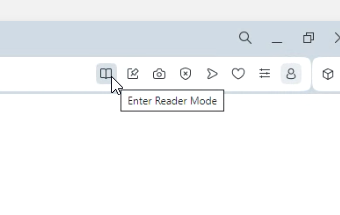
I can’t list every browser or explain how to copy text from a web page that cannot be copied for each one, since there are so many. Your browser usually has a reader mode. See the Safari user guide for more on Reader View for Mac users.
4. With The Page Source Code
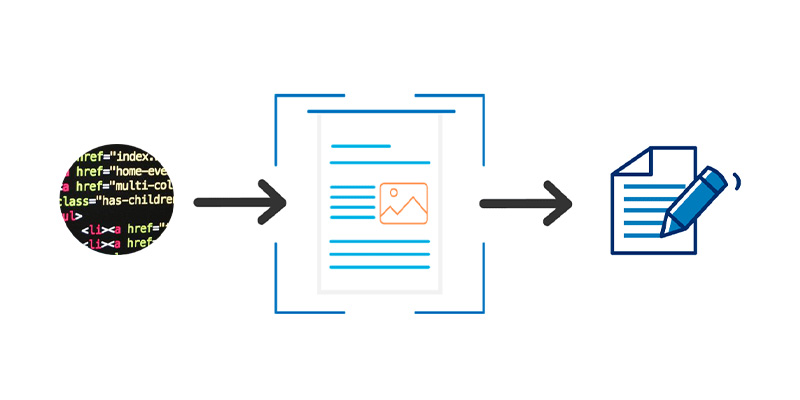
Note that I recommend this only if you’re familiar with HTML. You get a little technical with this stuff. So, this isn’t a tactic to use often.
In many browsers, you can view the source code of a page. If you use Chrome, visit the page where you want to copy the text. To view the page source, right-click on the page and select “View Page Source,” or press Ctrl + U.
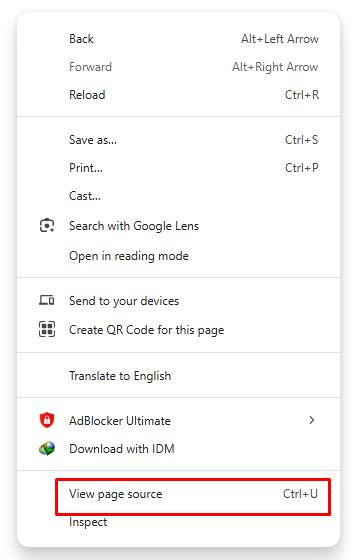
You’ll see something like this:
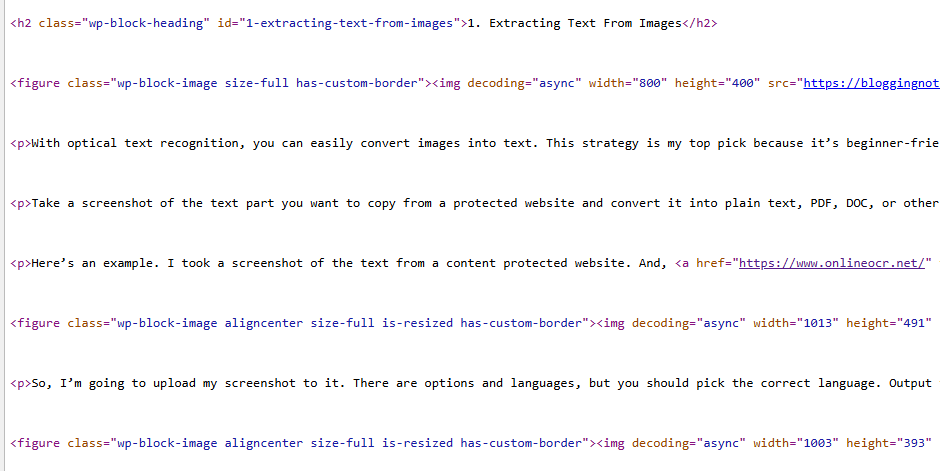
Users can scroll down to navigate content on some websites and use the right-hand side of the webpage. When you peer at the source code of a page, recognize content with “P” for paragraphs and “H” for headings. See an example here:
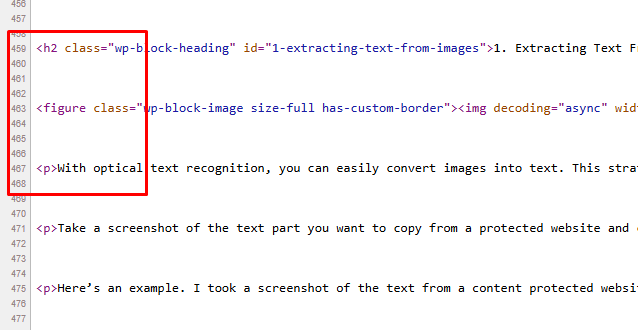
Some add-ons can disable source code views; this won’t work if the content utilizes those approaches. See how to open Page Source Code in other browsers:
- Firefox: This is an open-source web browser. Press the Ctrl+U key on your keyboard or right-click on the page and opt for ” View Source. “
- Edge: The Approach is the same as Microsoft Edge. Select Inspect Element by right-clicking on the page (Ctrl+U also works).
- Opera: Press “Ctrl+U” to open the source code of the selected page. Or click on the right-click menu and choose “page source.”
- Safari: Click “Develop” in the menu bar, then select Show Page Source—Web Inspector from the options menu.
- Brave/Vivaldi/Tor: Right-click to view the source or press Ctrl+U.
Using the methods above, you can view the page’s text, scripts, and other elements. The truth is, you can copy text from a web page that cannot be copied from the page source, but that’s not always the right way. It is barred in some cases, but you can try it if other methods do not work.
5. Using Print Feature In Your Browser
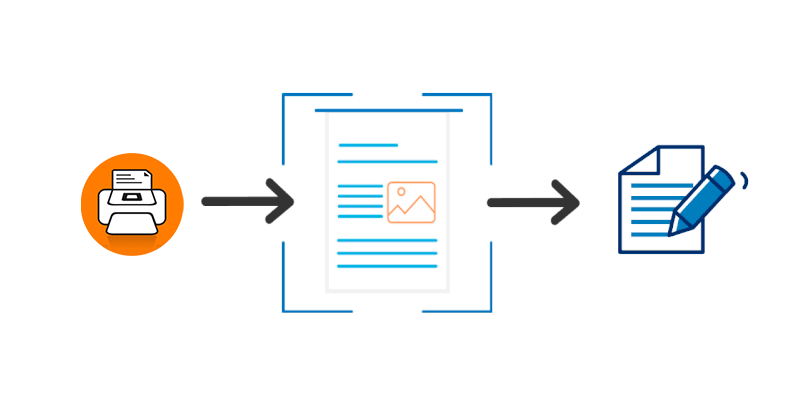
Browsers usually have a printing feature; otherwise, you can convert a page to a PDF. This method can also extract text from secure web pages; however, add-ons are available to restrict the Print-PDF feature.
I’ve had good results with Firefox and Edge using this approach. Most of the time, Chrome’s Print-PDF feature works well, but not all websites support it.
So, what are the steps involved?
- When right-click is enabled, right-click and select Print.
- If right-clicking isn’t working, use the shortcut key “Ctrl+P” to open the PDF feature with any web browser.
Okay, here’s a practical example (Access to certain content on this site is restricted).
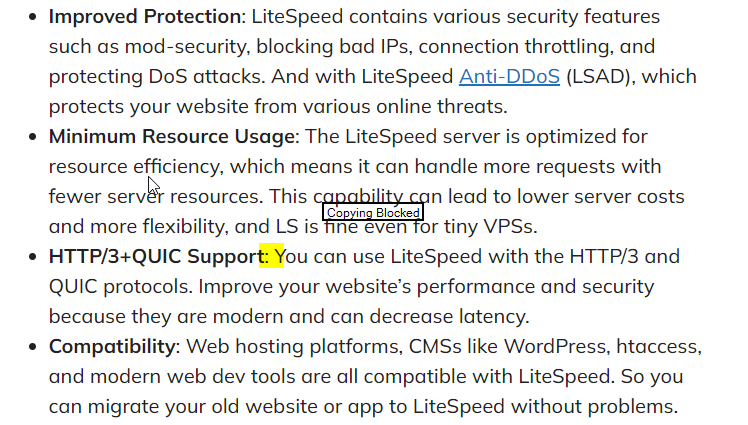
So, I’m going to convert this page to a PDF document using Chrome.
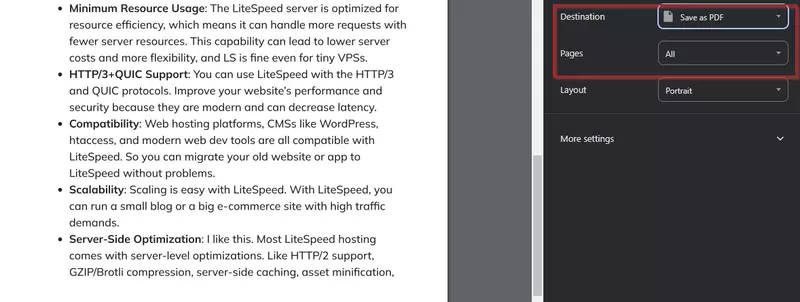
This method lets you download the PDF to your computer or save it as a PDF. I recommend using the earlier techniques to copy specific text sections.
6. Using the Save Web Page Feature
Some websites don’t disable right-clicking; however, you can’t copy text. You can then use the feature to save the web page. In most browsers, you can save the page to your device by pressing Ctrl+S. You can see it as ‘Save as’ in Chrome.
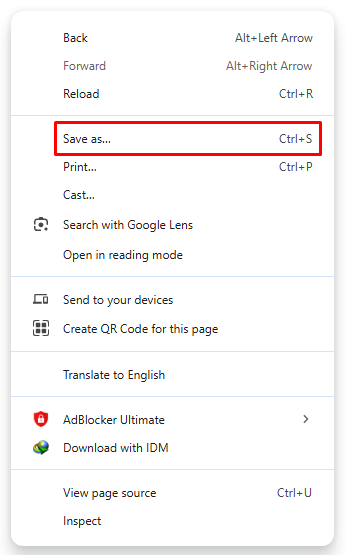
Yes, this process downloads the entire web page, including images, CSS, and other elements, creating a complete copy for offline viewing.
If it works, open the file in any browser to view the content. In some browsers, it’s just an HTML file; media and other resources won’t be saved. It may appear to be broken. However, if it is successful, it is a simple way to copy content from locked web pages.
The Bottom Line
Friends, I think you’ve found the answer to copying content from protected websites. Each approach is distinct, and these strategies are helpful for valid purposes. There are likely other methods, but most of those above are straightforward.
You can use them without much hassle, even as a beginner. And it is easy to unlock, click, select, and copy features on any website.
Let’s be honest… copying text from protected websites is like sneaking a peek at your birthday presents before the day. Websites lock their content for a reason.
Try getting creative if you find yourself copying and pasting. Using original content, modifying its wording, and publishing it without proper attribution to the author is unacceptable. So, ensure the creator receives proper acknowledgment.
More: Getting Back Hacked TikTok Accounts | TTFB Measurement Tools